Set up any inbox in minutes.
Gmail, Outlook, Exchange, IMAP, or POP3—TypeApp makes multi-account setup simple, keeps everything in one unified view, and lets you tune notifications exactly how you want.

Email providers & setup
Quick, reliable onboarding—plus troubleshooting steps for the most common login and sync issues.
Gmail
Fast sign-in and a clean multi-inbox experience.
- Open TypeApp → Add account → Gmail
- Sign in to your Google account and complete verification if prompted
- Choose which folders/labels should notify you
Troubleshooting
- If sign-in loops, try updating the app and retrying the login flow.
- If you use 2-step verification, confirm you’re approving the correct device/prompt.
- If mail doesn’t appear, verify the account is connected and refresh/sync is enabled in settings.
Outlook.com / Microsoft 365
One inbox for personal, work, and Microsoft accounts.
- Open TypeApp → Add account → Outlook
- Sign in and complete any organization-required steps
- Confirm sync and notification preferences per folder
Troubleshooting
- If your organization blocks sign-in, you may need admin approval or allowed apps access.
- If you see repeated password prompts, verify you’re using the correct Microsoft account (work vs personal).
- If messages are delayed, check battery restrictions and notification permissions on the device.
Exchange
Built for corporate email—with the controls teams expect.
- Open TypeApp → Add account → Exchange
- Enter your work email and follow your company’s instructions
- If needed, add server domain/username as provided by IT
Troubleshooting
- If setup fails, confirm your organization allows mobile email clients (MDM/Conditional Access may apply).
- If you see certificate warnings, confirm you’re on a trusted network and check date/time settings.
- If folders are missing, enable folder sync and choose which folders to sync in settings.
IMAP / POP3 / SMTP
Perfect for custom domains and advanced setups—IMAP or POP3, plus SMTP for sending.
- Open TypeApp → Add account → IMAP or POP3
- Enter your email and password (or app password if required)
- Add incoming (IMAP/POP3) and outgoing (SMTP) server details from your provider if auto-detect doesn’t work
Troubleshooting
- If authentication fails, check whether your provider requires an app password or special login permissions.
- Confirm SSL/TLS settings match your provider’s recommendations (and that POP3/IMAP is enabled on the account if required).
- If sending fails, verify SMTP server/port and whether authentication is enabled.
Unified Inbox & multi-account
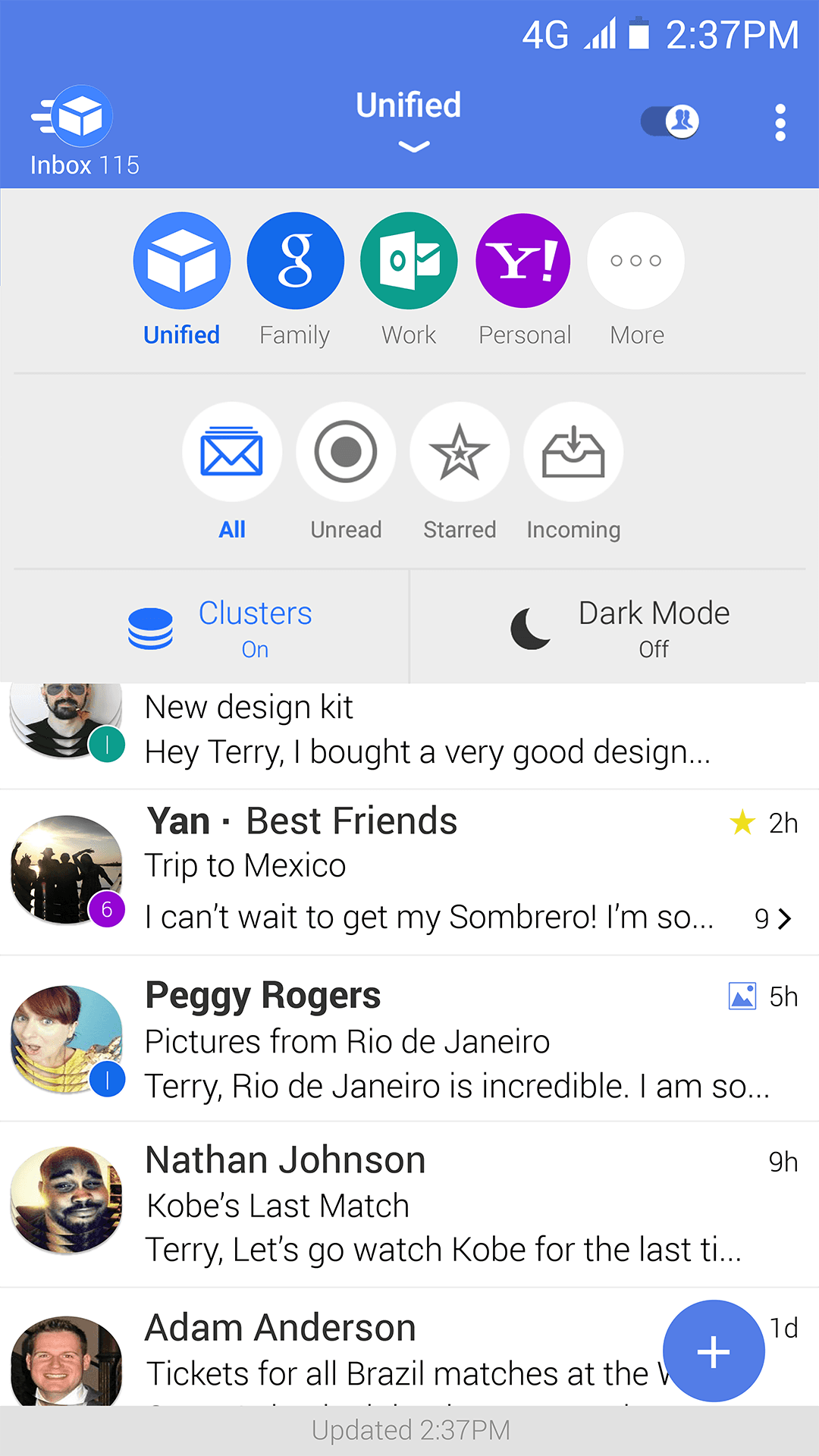
Add all your accounts—personal and work—and manage them in a single, consistent experience. Switch views instantly, keep folders aligned, and stay focused with a unified “All inboxes” workflow.
How it works
A simple flow from setup to a clean, unified day-to-day inbox.
Tips for power users
- Keep a unified “All inboxes” view for triage, then switch to account views for deep work.
- Turn on notifications only for the folders you truly care about.
- Use consistent signatures and “from” identities per account to avoid mistakes.
- When adding many accounts, complete setup one at a time to ensure each sync finishes cleanly.
Notifications & push services
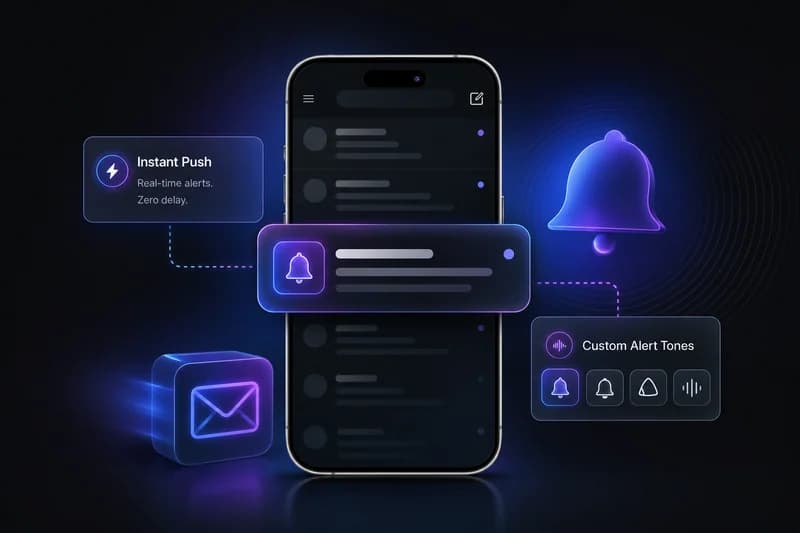
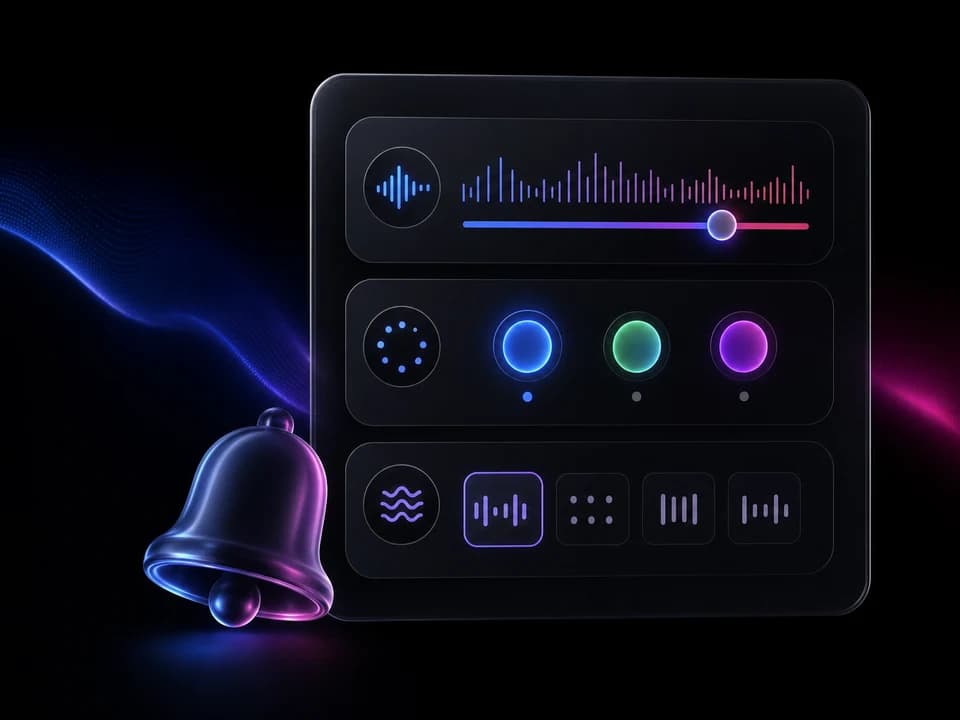
Get the right alerts at the right time. Choose which accounts and folders can notify you, customize sound and vibration, and reduce distractions with smarter alert settings.
Reliable delivery
Notification delivery depends on device settings, network conditions, and system policies—but you stay in control of what can notify you.
Granular control
Choose which folders and accounts deserve your attention—then mute the rest.
Smarter by default
Set a clean baseline, then refine: alert only for priority folders, and reduce repeat notifications.
Ready to bring all your inboxes together?
Download TypeApp and get set up in minutes.